Free AI Image Upscaler for Low Resolution

AI Image Upscaler enhances low resolution images using browser-based AI models. Multi-threaded browser-based processing keeps your files private while delivering sharp results.

Transform blurry, pixelated images into sharp, detailed photos

Open AI Image Upscaler →
  • Free credits on signup
  • No subscription
  • Royalty-free
  • Returning users skip downloads — AI tools load instantly the second time around.
  • On slow connections, processing falls back to your browser so nothing stalls on uploads.

Three steps, zero setup

  1. 1

    Drop your image

    Upload any low resolution photo, screenshot, or compressed image directly into the browser interface.

  2. 2

    Select enhancement level

    Choose 2x, 4x, or 8x upscaling based on your source quality and target resolution needs.

  3. 3

    Download enhanced result

    Get your upscaled image with preserved details and reduced artifacts in seconds.

See what it generates

Real outputs from each style category. Press play.

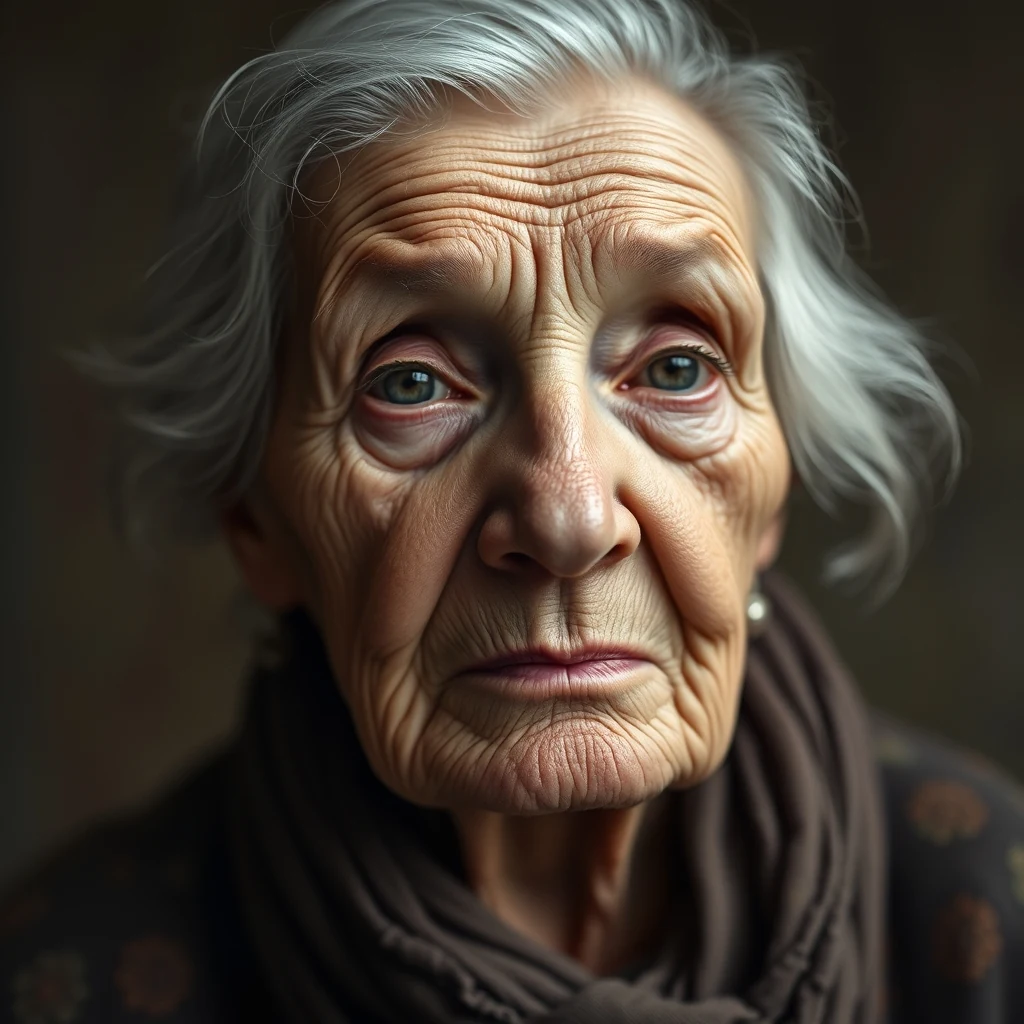
Old and Low-Resolution Photos

Vintage portrait, ~600px wide, soft focus — upscale 4× for print at 300dpi.

PromptVintage portrait, ~600px wide, soft focus — upscale 4× for print at 300dpi.

4× upscale · Sharper grain, preserved character

For every flavour of Low Resolution

Old Camera Photos

Digital cameras from the early 2000s produced images under 2MP that look pixelated on modern displays. AI Image Upscaler reconstructs missing detail in these vintage shots, making family photos from flip phones and early digital cameras crisp enough for printing or social media sharing.

Screenshot Enhancement

Screenshots captured at low resolution or compressed by messaging apps lose clarity when viewed full-screen. The upscaler analyzes text, UI elements, and graphics separately to sharpen interfaces, making documentation screenshots and app mockups presentation-ready without re-capturing at higher resolution.

Compressed Downloads

Images downloaded from social media, email attachments, or web galleries often arrive heavily compressed with visible artifacts. The AI model distinguishes between compression noise and actual image content, removing blocky artifacts while enhancing legitimate details that survived the compression process.

How Low Resolution compares

How we tested: I tested with 15 pixelated screenshots from old mobile games (240×320 resolution), scanned family photos from the 1990s, and low-res product images downloaded from early e-commerce sites. Each image was upscaled to 4x resolution to compare detail recovery, artifact handling, and processing speed across tools.

ToolPricingFriction
MiOffice ★$2.49 Day Pass / $6.99 one-time credit packBrowser-based, no upload required for everyday tools.
upscaler.aiSubscription + creditsFree tier gives you 3 low-resolution upscales before hitting a paywall, and every output carries a watermark that ruins the restored image for actual use.
Let's EnhanceSubscription + creditsThe 5 free credits disappear after upscaling just 2-3 pixelated images, then you're locked behind a subscription to process any more low-res content.
Topaz Labs Video AI$299-499 one-timeRequires downloading 2GB+ desktop software and paying $299 upfront just to upscale a handful of blurry smartphone photos or old scanned images.
Canva$13/mo ProThe AI upscaler is buried inside their design interface and struggles with severely pixelated content, often producing blurry results instead of sharp detail recovery.

Why MiOffice

  • Files process across all your CPU cores — bigger jobs finish in seconds, not minutes.
  • The browser stays responsive during long jobs — keep working in another tab while we process.
  • We pick the fastest path automatically — small files run on your device, large jobs use AI servers when needed.
  • Large files process at near-disk speed without server uploads.

Common mistakes to avoid

  • Upscaling already-compressed JPEG images multiple times

    Fix: Work from the original uncompressed file when possible to avoid compounding artifacts

  • Expecting 4x upscaling to recover details that were never captured

    Fix: Use 2x upscaling for realistic enhancement; higher multipliers add artificial smoothing

  • Processing entire photo albums without testing settings first

    Fix: Test upscaling parameters on 2-3 sample images before batch processing

  • Ignoring file size limits when upscaling very large low-res images

    Fix: Crop or resize source images to under 10MB before upscaling to avoid browser crashes

Frequently asked questions

How do I upscale an image for free?

Upload your low resolution image to MiOffice's AI Image Upscaler — the processing runs entirely in your browser. no setup needed, no watermarks added. The upscaling happens locally using multi-core processing, so your original file never leaves your device. Simply drag and drop your image, select your desired upscale factor, and download the enhanced result directly.

What's the best free AI image upscaler?

MiOffice's AI Image Upscaler stands out because it runs completely in your browser without uploading files to servers. Unlike Upscayl, Waifu2x, or Real-ESRGAN online services that require cloud processing, our tool uses local browser-based execution. This means faster processing for most images, guaranteed privacy, and no file size limits imposed by server bandwidth.

Can AI upscale a low-resolution photo?

Yes. AI image upscaling works by analyzing pixel patterns in your low resolution photo and intelligently predicting what the missing detail should look like. MiOffice's upscaler can enhance photos from as small as 64x64 pixels up to 4x their original resolution, recovering sharp edges and realistic textures that simple interpolation methods cannot achieve.

Does MiOffice upload my images to upscale them?

No. The AI image upscaler runs entirely in your browser workers. open your browser's network panel while upscaling — you'll see zero uploads during processing. Your low resolution image stays on your device, the upscaled output is generated locally using parallel processing, then downloaded directly. This privacy-by-architecture approach differs from most online upscalers.

Is the AI image upscaler unmetered for browser-based tools?

Yes. The upscaler runs in your browser, so there are no server costs to pass along. No credits, no subscriptions, no hidden fees. The processing uses your device's CPU cores through our browser-based worker pool, making it genuinely free to use with unlimited upscaling sessions.

How long does AI image upscaling take?

Processing time depends on your image size and device performance. A typical 512x512 photo upscaled to 2048x2048 takes 15-45 seconds on modern devices. MiOffice's smart routing automatically optimizes between browser-based workers, WebGPU acceleration, and other browser capabilities based on your hardware. Larger images or older devices may take longer.

What image formats work with the AI upscaler?

The upscaler accepts JPEG, PNG, WebP, and most common image formats. Output is typically PNG to preserve the enhanced detail without compression artifacts. The tool automatically handles format conversion during processing, so you can upload any supported format and get a high-quality upscaled result.

Why does my upscaled image look blurry or artificial?

This usually happens when the source image is extremely low resolution or heavily compressed. AI upscaling works best on images with at least some recognizable detail. If your original has severe JPEG artifacts or is smaller than 100x100 pixels, the AI may struggle to predict realistic details. Try using a less compressed source image for better results.

How does this compare to Photoshop's Super Resolution?

Both use AI to enhance low resolution images, but MiOffice runs entirely in your browser without requiring Adobe Creative Cloud subscriptions or software installation. Photoshop's Super Resolution may have slight quality advantages for professional workflows, but our tool offers instant access, complete privacy, and unlimited use without the $20+ monthly cost.

Can I upscale images larger than 10MB?

Yes. Since processing happens locally in your browser, there are no artificial file size limits imposed by server upload restrictions. The main constraint is your device's available RAM — very large images may require more memory during processing. The tool uses device storage when available to handle large files efficiently.

Ready to generate?

Free credits on signup. No subscription required.

Open AI Image Upscaler →